Who is this switch best for?
- Office LAN expansion
- CCTV and IP camera networks
- WiFi access point connectivity
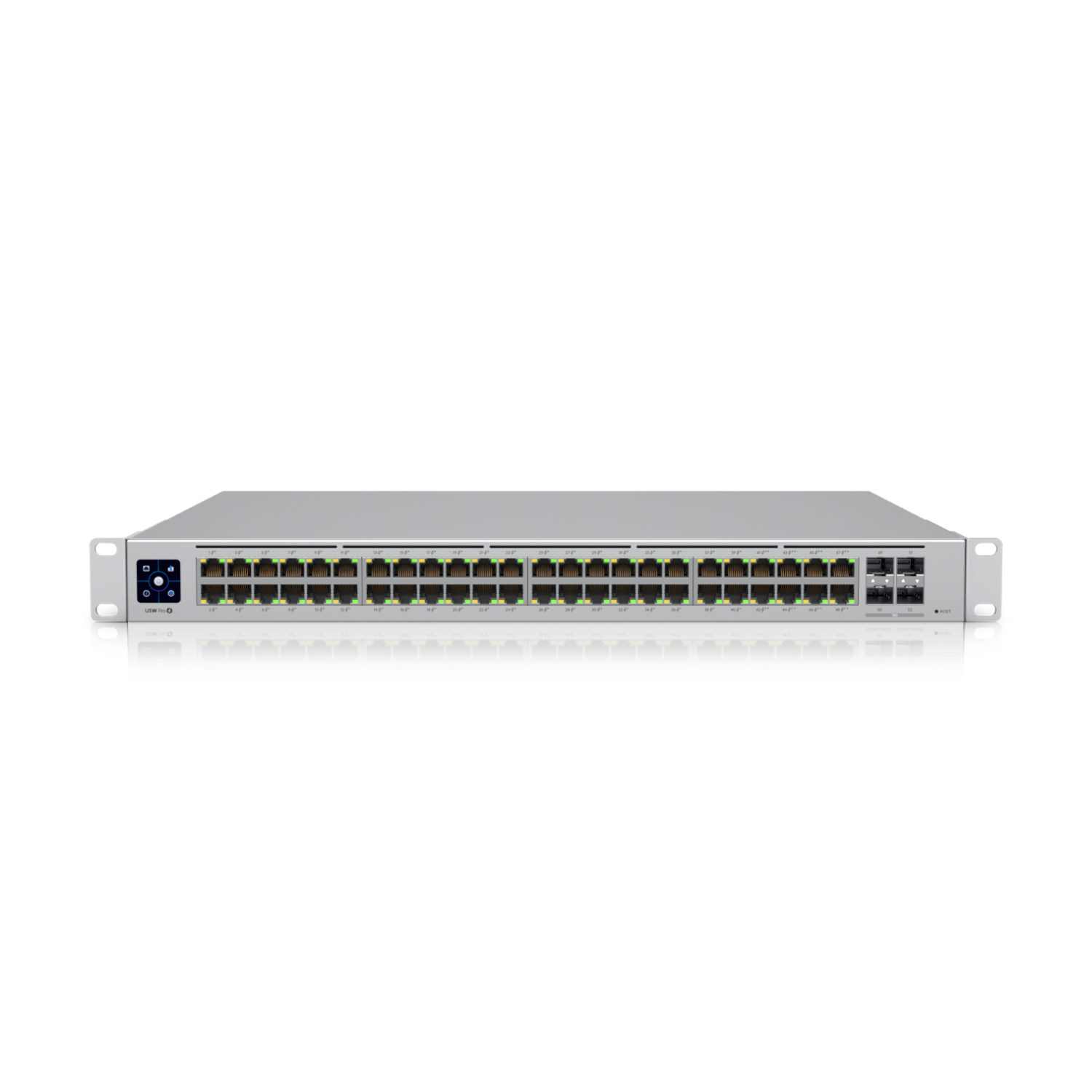
Works with standard Ethernet networking equipment including routers, computers, IP cameras, access points and servers. Confirm port, PoE and mounting requirements before purchase.
Check the product label or manufacturer datasheet for exact input voltage, power adapter and PoE requirements.
The Ubiquiti UniFi Switch Pro 48, model USW-Pro-48, provides high-density wired connectivity for offices, schools, hotels, and business networks. It combines connections for a large workgroup with faster backbone interfaces and centralized UniFi administration.
It is suitable for organizations connecting desktop computers, printers, servers, storage equipment, and separately powered network devices. Administrators can organize connections by department, apply network policies, and monitor the installation through UniFi Network.
This is the non-PoE USW-Pro-48. It does not supply power to cameras, phones, or wireless access points. Choose a suitable PoE model when powered connections are required.
Request the Ubiquiti UniFi Switch Pro 48 price in Kenya from Network Switch Kenya. Confirm the exact model, package contents, warranty, and required accessories before ordering.
Specifications follow Ubiquiti’s current technical page. Available functions can depend on the installed firmware and UniFi Network version. Tech Specs
A centralized switch makes it easier to organize connections for an entire department, office floor, or equipment area.
For example, a business can group workstation, printer, server, and access point connections within one documented port schedule. Spare capacity allows equipment to be added without immediately installing another access switch.
Port count should still be planned carefully. Any copper ports used for upstream connections are unavailable for local endpoints.
Build a Faster BackboneA busy network may have many devices accessing shared storage, servers, or upstream services simultaneously. A suitably designed backbone helps prevent those connections from competing through an unnecessarily restricted uplink.
Choose the uplink according to both ends of the connection. Optical modules, direct attach cables, switch interfaces, and server adapters must be compatible.
A faster backbone does not increase a workstation’s individual Gigabit interface speed or your internet subscription speed.
Administer Connections CentrallyUniFi Network brings switch administration into the same environment used for other compatible UniFi equipment.
A consistent naming scheme and documented port assignments help administrators locate endpoints, understand the installation, and make controlled changes.
For a business already using UniFi, this can simplify routine administration across multiple network devices.
Support a Structured Network DesignSeparate staff, guest, voice, and surveillance networks can make an installation easier to manage.
Segmentation must be planned together with addressing, DHCP services, routing, and security policies. Creating separate networks does not automatically establish the intended access restrictions.
The switch’s local routing capabilities do not replace a properly configured internet security gateway.
Connect workstations, printers, meeting-room equipment, and local servers through a central access switch.
Use a clear port schedule and reserve capacity for new desks, departmental changes, or additional equipment.
Schools and Training InstitutionsSupport computer labs, administrative offices, and teaching resources.
Plan student, staff, and management access separately where required. Consider the busiest periods, such as simultaneous software updates or access to shared learning materials.
Hotels and Commercial BuildingsConnect administrative equipment and separately powered network endpoints.
Where wireless access points or phones need Ethernet power, include suitable injectors or choose a PoE switch instead.
Server and Storage NetworksUse appropriately matched backbone connections to link the access network with servers or aggregation equipment.
Assess server interface speeds, storage performance, and traffic patterns before deciding that a particular uplink arrangement will solve a performance problem.
Confirm the model number. USW-Pro-48, USW-Pro-48-PoE, and Pro Max models have different capabilities.
Plan endpoint power separately. This model cannot power PoE devices.
Budget for the UniFi host. You need a suitable UniFi Network deployment for adoption and administration.
Select uplink accessories deliberately. Confirm supported modules or cables, distance, fiber type, and far-end compatibility.
Check rack space and cooling. Allow room for cable routing, airflow, and maintenance access.
Treat redundant power and battery backup separately. A redundant power connection does not by itself provide battery runtime during an outage.
Record the intended management network, IP addressing, VLANs, uplinks, and endpoint connections.
An example allocation is:
Connection groupExample purposeRJ45 ports 1–24Staff workstationsRJ45 ports 25–32Printers and shared equipmentRJ45 ports 33–40Separately powered network devicesRJ45 ports 41–48Servers, expansion, or spare capacitySFP+ interfacesPlanned backbone connectionsThese are example assignments rather than fixed port roles.
Start with a simple working connection before introducing advanced policies.
2. Prepare UniFi NetworkSet up a compatible UniFi Cloud Gateway, CloudKey, or supported self-hosted UniFi Network installation.
Confirm administrator access and use a supported application version compatible with the switch firmware.
For straightforward initial discovery, place the switch and UniFi host on the same network or VLAN. Ubiquiti documents additional procedures for adoption across routed networks. Device Adoption – Ubiquiti Help Center
3. Mount the SwitchInstall the switch in a suitable 19-inch rack with at least 1U available, following the mounting instructions.
Secure the brackets and use appropriate rack fixings. Keep ventilation clear and avoid placing excessive cable weight on the connectors.
The installation guide lists rack brackets, mounting hardware, a power cord, and rubber feet. Confirm the contents of the regional package supplied. dl.ui.com
4. Connect PowerConnect the supplied power cord to a suitable grounded outlet, preferably through an appropriately sized UPS.
If using a compatible USP-RPS system, follow its connection instructions. Ubiquiti specifies that the required USP cable is separate from the switch package.
The backup input supports a compatible redundant power system; it is not an ordinary DC socket for an arbitrary adapter. dl.ui.com
5. Connect the Initial UplinkConnect the switch to the network containing the UniFi host.
A copper connection can simplify initial setup. If beginning with an optical or direct attach connection, verify compatibility and link status first.
Avoid connecting multiple parallel uplinks before configuring the intended redundancy or aggregation design.
6. Adopt the SwitchOpen UniFi Network and locate the switch in the device list.
If discovery fails, check DHCP, VLAN membership, and connectivity to the UniFi host. For self-hosted or restricted environments, Ubiquiti identifies TCP 8080 and UDP 10001 among the relevant adoption connections.
Do not factory-reset an already configured switch unless its existing configuration can be replaced safely. Device Adoption – Ubiquiti Help Center
7. Name the Device and Stabilize Management AccessUse a descriptive name, such as Head-Office-Access-01.
Assign an appropriate management address or DHCP reservation. Confirm that authorized administrators can still reach the switch after the change.
Keep the management network documented and restrict access according to the organization’s security design.
8. Configure Networks and Port AssignmentsCreate or identify the required networks in UniFi.
For ordinary endpoint ports, assign the intended untagged/native network. For an upstream connection, allow only the tagged networks needed by the design.
An example is:
NetworkIntended devicesStaffOffice computersGuestGuest-facing equipmentVoiceIP phonesSurveillanceCameras and recording equipmentManagementAuthorized administrationConfirm where each network receives DHCP service and where routing and security policies are enforced.
Test one representative endpoint before applying the same settings to a large group of ports.
9. Configure Aggregation Only If RequiredIf multiple links are needed between compatible devices, configure LACP consistently at both ends before adding the extra connections.
Ubiquiti requires sequential port numbers for aggregation and documents LACP rather than static LAG support. An aggregate mainly benefits multiple traffic flows; it does not guarantee that one transfer will use the combined capacity of all member links. Ubiquiti Help Center
10. Validate and Back UpTest:
Back up the UniFi configuration and document the cable schedule. Schedule firmware updates during a maintenance window with stable power available.
For a different access-switch configuration, compare the UniFi Standard 48. If endpoints require power, review the UniFi Standard 48 PoE.
Related listings include Orbitlink’s USW-48-PoE product page and its USW-48-PoE listing with port and power details. Confirm the exact model and powered-port count.
Pro and Pro Max OptionsReview the UniFi Pro 48 listing when confirming this product’s identity. For powered endpoints, compare the UniFi Pro 48 PoE.
The UniFi Pro Max 48 and Pro Max 48 PoE are separate models. Assess their interface speeds, power capabilities, and accessories against the installation requirements.
The older UniFi US-48-750W should also be evaluated as a distinct product rather than assumed equivalent to the current Pro range.
Other High-Density AlternativesFor simpler data connectivity, investigate the TP-Link SG1048 Gigabit switch.
For another managed PoE platform, compare the TP-Link TL-SG3452XP.
MikroTik options include the CRS354-48P-4S+2Q+RM at Reisen SEO and the CRS354 listing at MikroTik Kenya. Compare management approach, endpoint power compatibility, and uplink requirements carefully.
Legacy Fast Ethernet and Cabling AccessoriesFor legacy applications, review the TP-Link TL-SF1048 and Orbitlink’s 48-port Fast Ethernet listing. Their connection speeds should be assessed against the workload before choosing them for the same role.
A 48-port patch panel can help organize structured cabling. A patch panel terminates cables; it does not replace a network switch.
Does the UniFi Switch Pro 48 provide PoE?
No. This description covers the non-PoE USW-Pro-48.
Does it provide Wi-Fi?
No. Connect separately powered access points.
Can it replace an internet security gateway?
No. Local routing functions do not replace the gateway’s complete internet security role.
Are optical modules included?
Do not assume they are. Specify compatible modules or cables separately and confirm the order contents.
Is USP-RPS the same as a UPS?
No. Redundant power and battery-backed runtime address different requirements.
What is the price in Kenya?
Request a current quotation from Network Switch Kenya, including the required uplink accessories and installation equipment.
Choose the Ubiquiti UniFi Switch Pro 48 for a centrally managed wired network with substantial connection capacity and flexible backbone options.
Visit Network Switch Kenya to request pricing and confirm the right model for your endpoint, uplink, and power requirements.
Ubiquiti UniFi Switch Pro 48 Price in Kenya is currently listed as available. Stock can change, so confirm availability before placing a large order.
The current listed price is KSh 118,000.00. Prices are generated from the product catalogue and may change when inventory is updated.
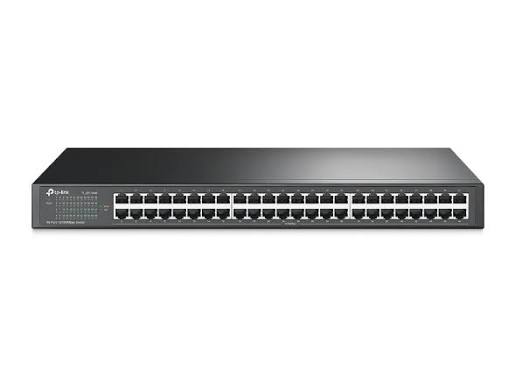
TP-Link
48-Port | Fast Ethernet | Unmanaged
In Stock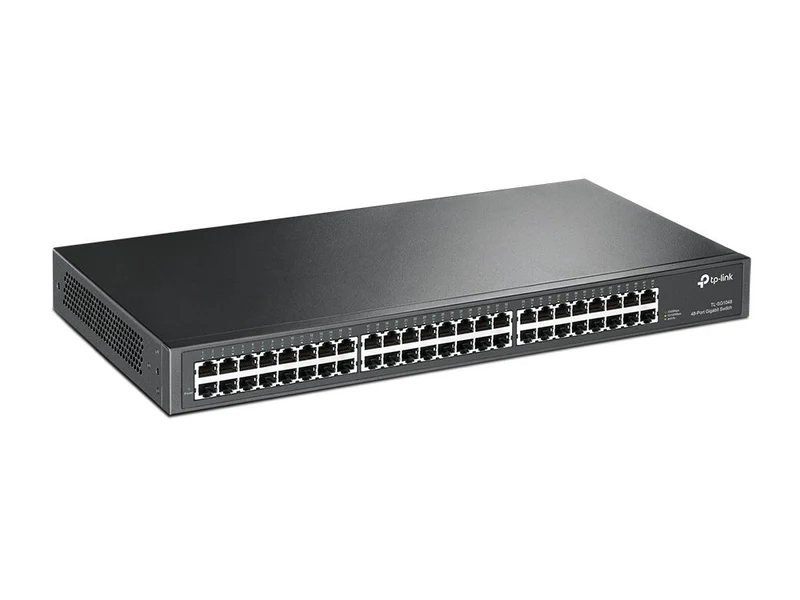
TP-Link
48-Port | Gigabit | Unmanaged
In Stock
Ubiquiti
18-Port | Gigabit | PoE+ | 2× SFP | Cloud Managed
In Stock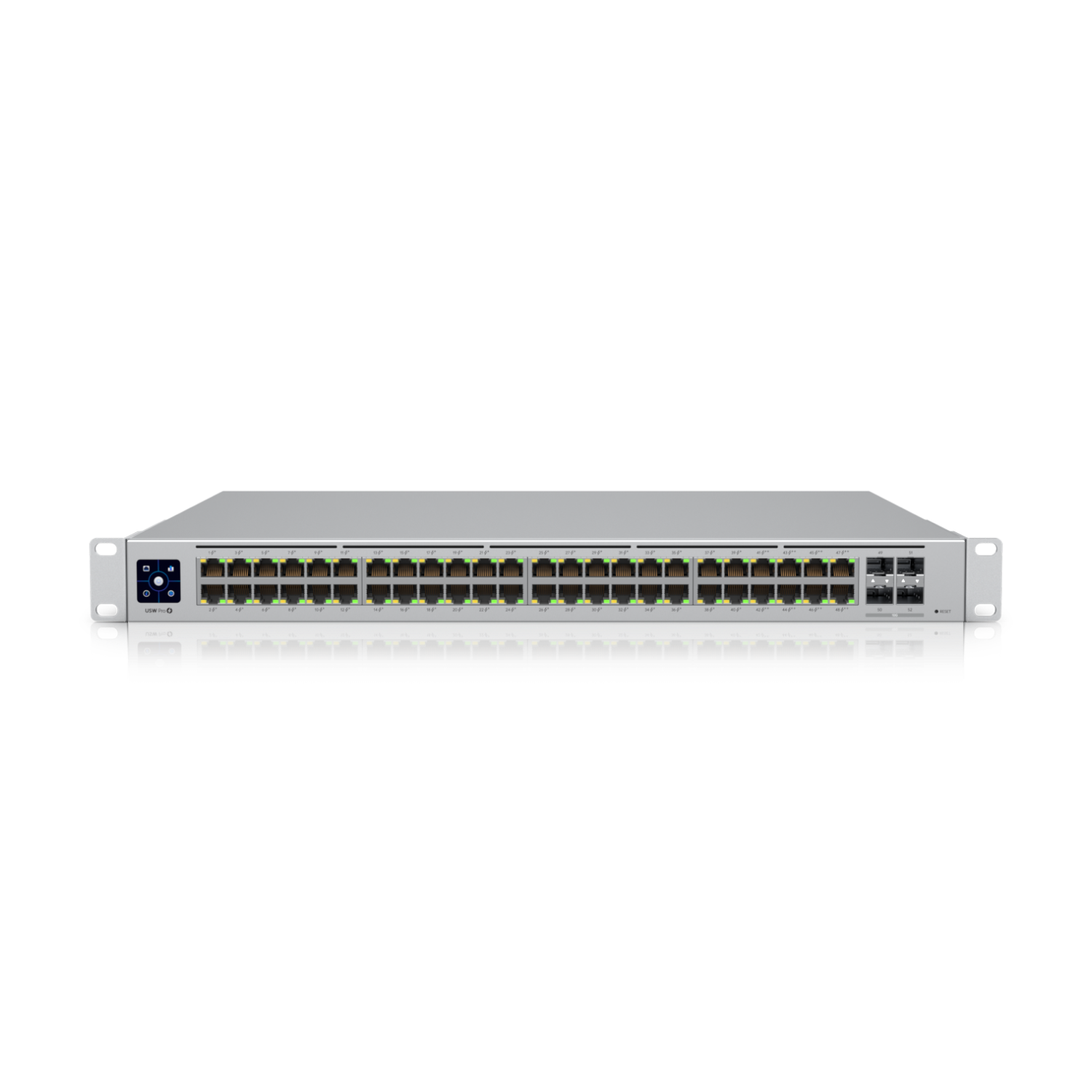
Ubiquiti
52-Port | Gigabit | PoE+ | 4× SFP | Cloud Managed
In Stock