Who is this switch best for?
- Office LAN expansion
- CCTV and IP camera networks
- WiFi access point connectivity
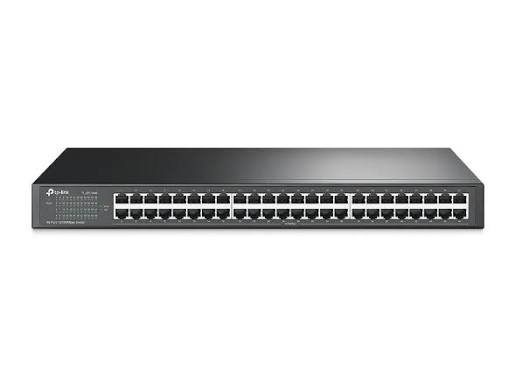
Works with standard Ethernet networking equipment including routers, computers, IP cameras, access points and servers. Confirm port, PoE and mounting requirements before purchase.
Check the product label or manufacturer datasheet for exact input voltage, power adapter and PoE requirements.
The TP-Link TL-SF1048 is an unmanaged Fast Ethernet switch for businesses, schools and organisations that need many wired connections with straightforward installation. It provides 48 Ethernet ports, each supporting 10/100Mbps connections, and fits into a standard networking rack.
Its plug-and-play operation makes it suitable for expanding an existing LAN without configuring switch-management software. Connect it to your router, attach your Ethernet devices and continue managing internet access and addressing through the router. TP-Link United Arab Emirates
The TL-SF1048 is best suited to networks where 100Mbps connections meet the application requirements. Before purchasing, consider the traffic generated by your computers, recording equipment and shared storage, particularly where several devices share one router connection.
View the TP-Link TL-SF1048 at Network Switch Kenya and request a quotation confirming the hardware version, warranty, accessories and delivery arrangements.
Specifications follow TP-Link’s published documentation. Confirm physical and electrical details against the hardware revision supplied. The 9.6Gbps switching capacity is an aggregate switching figure; each individual port remains limited to 100Mbps. TP-Link United Arab Emirates
A central switch can help organise cabling for a computer laboratory, office floor or department. It also provides space for additional devices without immediately adding another switch.
When one port connects to your router or upstream network, 47 ports remain for other devices. Additional connections to switches or network equipment also use ports, so include them in your installation plan.
Straightforward InstallationThe unmanaged design suits installations where the main requirement is connecting devices to an existing LAN. Your router should provide DHCP addressing, internet access and firewall protection.
This approach can simplify deployment, but businesses requiring configurable VLANs, detailed monitoring or traffic controls should choose a managed model.
For another listing of this exact model, see the supplied TP-Link TL-SF1048 product page at Orbitlink Solutions.
Organised Rack InstallationInstalling the switch beside a patch panel makes it easier to identify cable routes and maintain connections. Labelled patch leads help staff locate the correct port when adding a workstation or troubleshooting a room’s network outlet.
Measure the available rack space and allow room for cables, ventilation and access to power before installation.
Quiet OperationThe documented fanless design avoids cooling-fan noise, which can be useful where a cabinet is near occupied workspaces. The switch still needs ventilation: keep its openings clear and avoid stacking equipment in a way that traps heat. static.tp-link.com
Connect workstations, network printers and other Ethernet devices used for routine office tasks. Consider a Gigabit alternative if staff regularly transfer large files or access high-performance shared storage.
Schools and Computer LaboratoriesThe port count can accommodate many classroom computers. Include the teacher’s workstation, router connection, printers and spare outlets when calculating capacity.
For laboratories using large software deployments or centralised storage, assess whether the 100Mbps connection speed will meet demand.
Existing Fast Ethernet NetworksThe TL-SF1048 can be useful when maintaining an installation whose devices and applications already operate satisfactorily at Fast Ethernet speeds.
Check future requirements before committing to the same speed tier. Faster internet services or new storage systems may justify upgrading the switching network.
CCTV Data ConnectionsThe switch can carry Ethernet traffic for separately powered IP cameras and recording equipment. Calculate total camera traffic carefully, especially when many cameras send video through a single recorder or uplink connection.
It does not supply camera power. If your installation needs network management and PoE, compare the requirements with the supplied UniFi Pro Max 48 PoE listing, which is a different product category.
Gather the switch, supplied power cord, Ethernet patch leads and mounting accessories.
Use Cat5e or Cat6 cables for a practical installation that can also support suitable future upgrades. Keep each standard copper Ethernet channel within 100 metres.
Create a simple port list covering:
For rack installation, attach the mounting brackets and secure the switch with hardware appropriate for your cabinet.
For a supported desktop arrangement, place it on a stable surface and fit the supplied rubber feet. Keep it away from moisture, direct heat and heavy dust.
Avoid pulling cables tightly against the ports. Use cable management to support larger bundles.
3. Connect PowerConnect the supplied power cord to the switch and a suitable mains outlet or UPS. Check that the power indicator illuminates.
If uninterrupted operation matters, include the router and other essential equipment in your backup-power plan. Keeping the switch powered alone will not preserve internet access if the router loses power.
4. Connect Your RouterConnect a LAN port on the router to an available switch port using an Ethernet cable.
The router should already be configured for your internet connection. In a typical office network, it also assigns device addresses through DHCP.
The supplied MikroTik hEX S RB760iGS product link is a router option to assess separately. Its capabilities do not change the TL-SF1048’s port-speed limit.
5. Connect End DevicesConnect computers, printers and other equipment to the remaining ports.
Where the building uses structured cabling, connect switch ports to the patch panel and devices to the corresponding wall sockets.
A camera, phone or access point that requires PoE needs a suitable separate power arrangement. Confirm compatibility before selecting an injector.
6. Check Network AddressingOn computers using DHCP, select automatic IP addressing. Confirm that each device receives an address in the intended network.
Configure printers and other devices that need consistent addresses using DHCP reservations or a suitable addressing plan on your router.
The TL-SF1048 does not require a management IP address for normal operation.
7. Test ConnectionsCheck the link indicators, then verify that a connected computer can:
A 100Mbps negotiated connection is normal for this switch. If a device connects at only 10Mbps, inspect the cable, connectors and network-adapter settings.
8. Prevent Cabling LoopsDo not connect two switch ports directly together. Avoid adding multiple connections between switches unless the network design explicitly supports those paths.
For a straightforward installation, use one planned uplink and label it clearly.
9. Document the NetworkRecord port assignments, connected rooms and equipment locations. Keep the switch’s hardware-version details and purchase records with the installation documentation.
If an Ethernet outlet is difficult to reach, the supplied TP-Link TL-WPA7517 KIT powerline extender listing is a separate option to evaluate. Powerline performance depends on the electrical installation and should be tested at the intended location.
For higher-speed copper networking, compare the TP-Link TL-SG1024 24-Port Gigabit Rackmount Switch. Choose based on both speed and the number of connections required.
TP-Link’s documentation lists:
Confirm the supplied package and regional power-plug type before ordering. Ethernet cables and the networking cabinet should be budgeted separately unless your quotation includes them. static.tp-link.com
No. Its ports support 10/100Mbps. Choose a Gigabit model for 1000Mbps Ethernet connections.
Can it connect Gigabit-capable computers?Yes, where their network adapters support negotiation to 100Mbps. The resulting connection will operate at the switch’s supported speed.
Can it distribute internet access?Yes, when connected to a correctly configured router. The switch expands wired connectivity; the router provides internet access.
Can it power IP cameras?No. Cameras require separate power supplies, compatible injectors or a PoE switch.
Does it require an Omada controller?No. It operates as an unmanaged switch and does not require controller adoption.
Can 48 computers connect alongside a router?A router connection uses one of the 48 ports, leaving 47 for computers or other equipment. Plan additional switching if you need more connections.
Request the TP-Link TL-SF1048 48-Port 10/100Mbps Rackmount Switch from Network Switch Kenya. Confirm your required port count, traffic requirements, hardware version and warranty before ordering.
Browse Network Switch Kenya for Gigabit, managed and PoE alternatives if your installation needs additional capabilities.
TP-Link TL-SF1048 Price in Kenya | 48-Port Rackmount Switch
Buy TP-Link TL-SF1048 48-Port 10/100Mbps Rackmount Switch in Kenya. Expand your wired network with plug-and-play connectivity from Network Switch Kenya.
TP-Link TL-SF1048 48-Port 10/100Mbps Rackmount Switch Price in Kenya is currently listed as available. Stock can change, so confirm availability before placing a large order.
The current listed price is KSh 12,500.00. Prices are generated from the product catalogue and may change when inventory is updated.
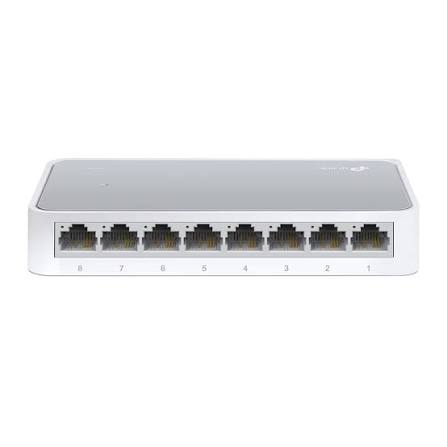
TP-Link
8-Port | Fast Ethernet | Unmanaged
In Stock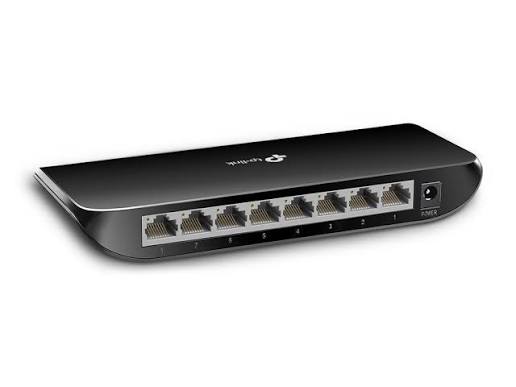
TP-Link
8-Port | Gigabit | Unmanaged
In Stock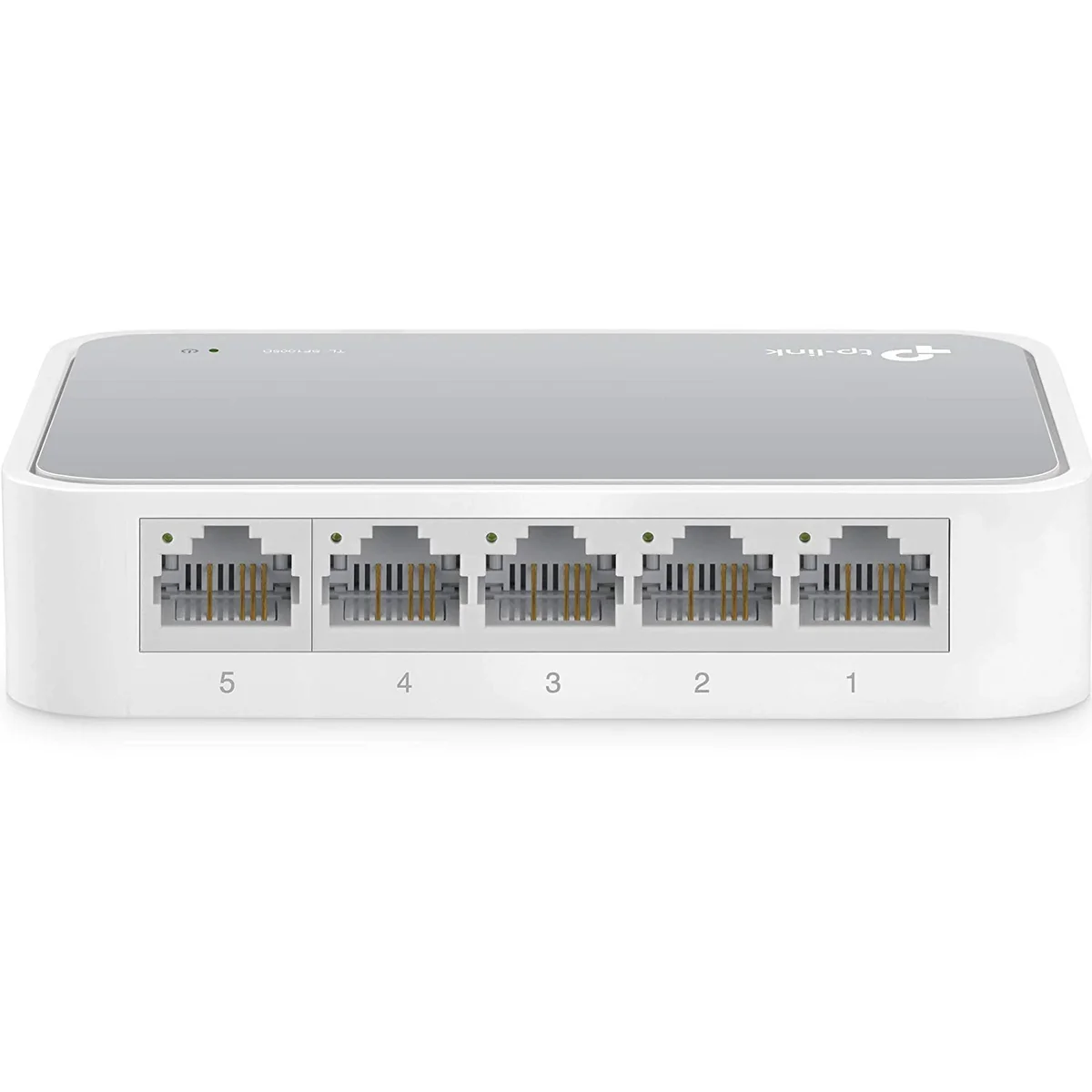
TP-Link
5-Port | Fast Ethernet | Unmanaged
In Stock
TP-Link
5-Port | Gigabit | Unmanaged
In Stock