Who is this switch best for?
- Office LAN expansion
- CCTV and IP camera networks
- WiFi access point connectivity
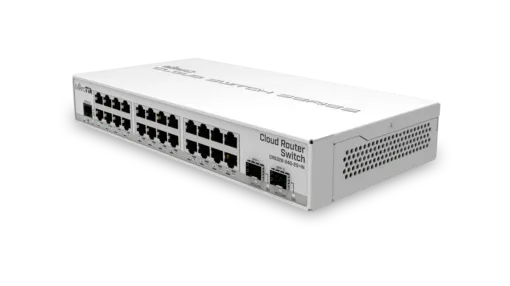
Works with standard Ethernet networking equipment including routers, computers, IP cameras, access points and servers. Confirm port, PoE and mounting requirements before purchase.
Check the product label or manufacturer datasheet for exact input voltage, power adapter and PoE requirements.
The MikroTik CRS326-24G-2S+IN combines extensive Gigabit connectivity, faster uplinks and configurable network management in a compact desktop enclosure. It suits offices, technical workspaces, home labs and smaller server installations that need more connections without a full-width rackmount chassis.
It provides 24 Gigabit Ethernet ports and two additional 10G SFP+ interfaces, allowing ordinary endpoint equipment to connect alongside appropriately equipped servers or upstream switches. It also supports a choice of RouterOS or SwOS. CRS326-24G-2S+IN
Request the current MikroTik CRS326-24G-2S+IN price in Kenya from Network Switch Kenya, including compatible uplink accessories and installation requirements.
The CRS326-24G-2S+IN is the desktop version of this switch family. It should not be confused with the CRS326-24G-2S+RM, which uses a different enclosure and installation arrangement.
Its dedicated uplinks can carry traffic between the switch and suitably equipped upstream devices while preserving the copper connections for computers, printers and other endpoints.
This model accepts passive PoE input but does not provide PoE output. It cannot power cameras, phones or access points through its Ethernet connections.
Specifications follow MikroTik’s product information. CRS326-24G-2S+IN
The switch provides substantial endpoint capacity without requiring a full-width rackmount installation.
A desktop format can be convenient where equipment sits on a suitable shelf or workbench. Allow enough space for ventilation, the adapter and cable routing.
Faster Uplinks for Shared TrafficA higher-capacity upstream connection can help when several devices access resources elsewhere on the network simultaneously.
For example, multiple Gigabit workstations may share access to an appropriately connected storage server. Each workstation remains limited by its own interface, while the faster uplink provides additional shared capacity.
Storage performance, application behavior and the equipment at the opposite end still affect results.
Separate Interfaces Preserve Copper CapacityUsing an SFP+ interface upstream leaves all copper ports available for endpoints.
This is useful where the installation already has many computers, printers and other Ethernet devices.
RouterOS or SwOS AdministrationRouterOS provides MikroTik’s broader configuration environment. SwOS focuses on switching through a browser interface.
Choose the operating system according to the installation and administrator’s requirements. They run separately; switching between them requires a reboot and should be treated as a planned configuration change.
Do not expect every setting or feature to work identically in both environments.
Quiet OperationFanless cooling avoids cooling-fan noise near working areas.
The switch and installed accessories still produce heat. Keep ventilation paths clear and assess transceiver requirements before populating the uplinks.
Switching capacity and routing performance are different. Traffic processed through software can behave differently from hardware-switched traffic. Do not assume that every RouterOS service operates at the combined speed of all ports.
For demanding internet routing, VPN or security workloads, assess a suitable dedicated gateway.
Connect workstations, printers and shared resources while maintaining a planned upstream connection.
The router or firewall provides the required internet security and gateway services.
Home LabsConnect servers, computers and test systems in a compact managed environment.
Keep experiments separate from production equipment, particularly when testing VLANs or redundant connections.
Shared StorageConnect appropriately equipped storage through a suitable high-speed interface.
A faster network connection is most useful when the storage system and workload can use it.
Creative WorkspacesProvide connections for several users accessing shared media files. Consider endpoint adapters and storage performance alongside the switch.
Small Distribution PointsBring local Ethernet equipment together while connecting upstream over compatible optical or direct attach links.
Select modules and cables according to the equipment and distance at both ends.
An SFP+ slot needs a compatible connection accessory. Choose a direct attach cable or optical modules and fiber according to the link.
Check connector type, supported speed, wavelength, fiber category and distance. For copper transceivers, verify explicit compatibility, heat and power requirements.
Check that the label states CRS326-24G-2S+IN.
For equipment already in service, obtain authorized access and preserve the configuration before making changes. Avoid resetting a working installation simply because its management address is unknown.
2. Prepare the Network PlanDocument endpoints, upstream equipment, cable distances and management addressing.
Define any VLANs and decide which device provides routing, DHCP and firewall policies. Identify endpoints requiring separate power.
3. Position and Power the SwitchPlace the unit on a stable surface with ventilation and room for cables.
Use the approved adapter for initial setup. Passive PoE input requires a verified compatible source within the specified range; do not assume a standard 48V PoE source is suitable.
4. Establish Initial AccessMikroTik’s quick-start procedure uses 192.168.88.1. For an isolated connection, configure a computer with an unused address such as 192.168.88.2/24.
In RouterOS, connect through WebFig or WinBox. If IP access is unavailable, WinBox’s Neighbors discovery may provide a local MAC-address connection.
Follow label credentials where supplied. Otherwise, the documented factory login is admin with no password. Set a strong password immediately. MikroTik Documentation
Avoid using a default address on a network where another device already occupies it.
5. Choose the Operating SystemFor RouterOS, retain the appropriate boot selection.
MikroTik documents System → RouterBOARD → Settings → Boot OS for selecting the alternative system. In SwOS, the System page provides a Boot RouterOS control.
Plan the reboot and preserve the relevant configuration first. MikroTik Documentation
6. Secure ManagementAssign a recognizable device name and predictable management address.
Restrict administration to authorized users and networks. Maintain a recovery path before changing management VLANs or access restrictions.
In RouterOS, review enabled management services and use WinBox Safe Mode where appropriate for changes that could disconnect the session.
7. Review SoftwareUse software intended for the exact model and operating system.
Back up settings, review release instructions and maintain stable power during updates. RouterOS and SwOS use different update procedures.
8. Establish Basic SwitchingInspect the existing bridge or switching configuration before adding new entries.
For RouterOS, verify hardware-offload status for the intended traffic path. Avoid unnecessary software processing for ordinary switched traffic.
9. Configure VLANs Where RequiredFor a typical segmented design:
Use the procedure for the selected operating system. Enable restrictive filtering only after membership and management access are correct.
10. Connect UplinksInstall compatible modules or cables and check link establishment at both ends.
Begin with one upstream path. Configure aggregation or loop prevention before adding parallel links.
11. Add Endpoints and TestConnect equipment gradually. Confirm addressing, local resources and internet access where applicable.
Provide separate power to cameras, phones and access points. Configure their application settings independently.
12. Back Up and DocumentIn RouterOS, retain appropriate backups and readable configuration records.
SwOS provides Apply All, Save Backup and Restore Backup controls. Preserve a backup after successful testing. MikroTik Documentation
Label cables and document port assignments, management addressing and uplink accessories.
If the installation requires a full-width rackmount enclosure, compare the MikroTik CRS326-24G-2S+RM at MikroTik Kenya. Confirm its mounting and power arrangements separately.
For a different managed platform, review the UniFi Standard 24 or UniFi Pro 24.
Where integrated endpoint power is required, assess the UniFi Standard 24 PoE and UniFi Pro 24 PoE. Orbitlink Solutions also lists the USW-24-PoE and USW-Pro-24-PoE. Compare powered-port counts, budgets and management requirements.
For straightforward expansion without managed controls, compare the TP-Link TL-SG1024D at Orbitlink Solutions and D-Link DGS-1024D at Tawa. Tawa’s separate 24-port Gigabit listing should be checked for its exact model.
Reisen SEO lists the TP-Link TL-SG1024, TL-SG1024D and D-Link DGS-1024D.
You can also explore the TP-Link TL-SG1024 on Network Switch Kenya.
Fast Ethernet switches belong to a different speed category. Relevant comparisons include the TL-SF1024D at Orbitlink Solutions and TL-SF1024 at Tawa.
Tawa also has a D-Link DES-1024D unmanaged listing and a separate DES-1024D desktop listing.
Additional options include the DES-1024D at Reisen SEO and TP-Link TL-SF1024. Check speed and configuration needs rather than treating every 24-port product as equivalent.
Confirm the supplied adapter and documentation. Do not assume accessories for the rackmount model are included with the desktop version.
Specify transceivers, direct attach cables, fiber leads, Ethernet cables, UPS equipment and installation services separately unless expressly included. Verify warranty coverage and product condition before purchase.
No. Its passive PoE input powers the switch itself.
Does it support 10Gbps connections?Yes, through its two SFP+ interfaces with compatible accessories.
Can all 24 copper ports remain available when using an optical uplink?Yes. The SFP+ interfaces are additional connections.
Can it run RouterOS and SwOS simultaneously?No. Dual boot means choosing which operating system runs.
Is it the same enclosure as the RM model?No. The IN model uses a compact desktop enclosure.
Will its uplinks make an individual Gigabit computer faster?They provide additional shared capacity upstream. The computer remains limited by its own interface.
Contact Network Switch Kenya for a quotation on the MikroTik CRS326-24G-2S+IN. Share your endpoint count, uplink equipment and management requirements to confirm suitable accessories and setup.
MikroTik CRS326-24G-2S+IN 24-Port Gigabit Switch Price in Kenya is currently listed as available. Stock can change, so confirm availability before placing a large order.
The current listed price is KSh 35,000.00. Prices are generated from the product catalogue and may change when inventory is updated.
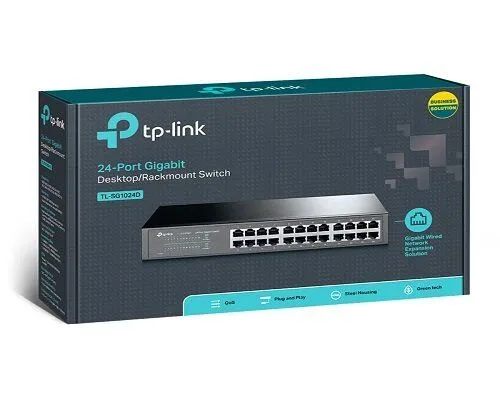
TP-Link
24-Port | Gigabit | Unmanaged
In Stock
TP-Link
24-Port | Gigabit | Unmanaged
In Stock
TP-Link
24-Port | Fast Ethernet | Unmanaged
In Stock
D-Link
24-Port | Fast Ethernet | Unmanaged
In Stock