Who is this switch best for?
- Office LAN expansion
- CCTV and IP camera networks
- WiFi access point connectivity
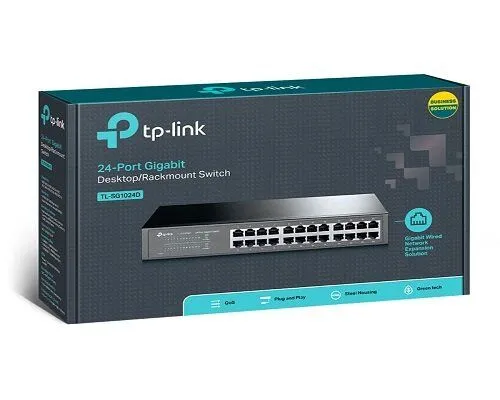
Works with standard Ethernet networking equipment including routers, computers, IP cameras, access points and servers. Confirm port, PoE and mounting requirements before purchase.
Check the product label or manufacturer datasheet for exact input voltage, power adapter and PoE requirements.
The TP-Link TL-SG1024D is a practical choice for expanding wired connectivity in offices, schools, shops and other business premises. Its 24 Gigabit Ethernet ports connect computers, printers, network storage and other Ethernet devices, while its unmanaged design makes everyday installation straightforward.
Desktop and rackmount installation options allow you to position it on a suitable surface or integrate it into a networking cabinet. It suits businesses that need more wired connections without the configuration requirements of a managed switch. TP-Link Singapore
Explore the network switches available at Network Switch Kenya and request a quotation for the TL-SG1024D, confirming the hardware revision, mounting accessories, warranty and delivery arrangements.
These figures follow TP-Link’s documentation, with physical and power figures identified for V11. Confirm the supplied revision before ordering. The 48Gbps switching capacity is an aggregate figure; each port supports up to 1Gbps. Omada by TP-Link
Gigabit Ethernet provides more connection capacity than 100Mbps Fast Ethernet. It can help when accessing shared files, transferring documents or connecting workstations to network storage.
Actual transfer performance depends on the equipment at both ends, cable quality, storage speed and other traffic. The switch cannot increase your internet speed beyond the service supplied by your ISP.
A Central Connection PointBringing connections into one switch can make cabling easier to organise and maintain. A labelled patch panel and clearly identified patch leads help staff locate the correct connection when troubleshooting.
Allow for infrastructure connections when calculating capacity. One connection to your router leaves 23 ports for other devices. Connections to additional switches also consume ports.
Simple Everyday OperationFor an ordinary LAN, connect the switch to a configured router and attach your equipment. The router continues providing internet access, DHCP addressing and firewall protection.
The supplied TP-Link TL-SG1024D listing at Orbitlink Solutions provides another reference for this exact model.
Quiet InstallationFanless cooling avoids cooling-fan noise, which can be useful when networking equipment is close to occupied workspaces.
Ventilation remains necessary. Keep openings clear, avoid excessive heat and support cable bundles so they do not pull on the ports.
Additional Functions on V11TP-Link’s V11 documentation lists isolation for ports 1–22 and loop prevention for ports 1–24. Check the supplied guide before using these functions, particularly where computers need to communicate with printers or shared storage.
These functions depend on the hardware revision and do not provide the full configuration capabilities of a managed switch. Omada by TP-Link
Connect desktop computers, printers and other Ethernet equipment to a central wired network. Leave spare ports for new workstations and future expansion.
Schools and Computer LaboratoriesThe port count can accommodate a classroom or training-room network. Include the teacher’s workstation, router connection and printers when planning capacity.
For simultaneous software installation or large shared resources, check server performance and the connection carrying the combined traffic.
Retail and Service BusinessesUse the switch to connect compatible POS equipment, printers and office computers. Addressing and application access should follow the requirements of your business-system provider.
If payment systems, guest access and staff equipment need enforced separation, choose a managed network design.
Shared Storage and Local BackupsConnect Ethernet-equipped storage systems and computers for local file access. Where many users share one storage connection, they also share its available bandwidth.
For demanding backup workloads, assess whether faster storage interfaces and switching are needed.
CCTV and Wireless Access-Point ConnectionsThe switch can carry network traffic for IP cameras, recording equipment and access points. Devices still need appropriate power supplies or compatible PoE injectors.
If you want a switch that also powers compatible equipment, compare the supplied UniFi Pro Max 24 PoE against your power and management requirements.
Gather:
Gigabit Ethernet requires properly terminated cables with all four wire pairs connected. Keep each standard copper Ethernet channel within 100 metres.
2. Check the Hardware RevisionRead the model and version information on the switch label.
Use the matching installation guide to confirm the power requirements, mounting procedure and any physical mode controls. Do not assume that older units have all the functions documented for V11.
For normal communication between office devices, begin with the standard operating mode. Understand the effect of isolation before enabling it.
3. Mount or Position the SwitchFor rack installation, attach the correct supplied brackets and secure the switch using hardware suitable for your cabinet.
For desktop placement, use a stable surface and fit the rubber feet where supplied.
Keep ventilation openings clear and protect the unit from moisture and excessive dust. Provide room to connect and remove cables without sharply bending them.
4. Connect PowerConnect the supplied power cord to the switch and a suitable mains outlet or UPS. Check that the power indicator illuminates.
Include the router and other essential equipment in your backup-power plan. Powering the switch alone will not preserve internet access if the router loses power.
5. Connect Your RouterConnect a router LAN port to an available switch port.
The router should already have working internet access and, for a typical small-office installation, an enabled DHCP server.
The supplied MikroTik hEX PoE lite RB750UPr2 is a separate router option, but its Ethernet ports are 10/100Mbps. An uplink to that router therefore operates at a maximum link speed of 100Mbps, even though local connections between suitable devices on the TL-SG1024D can remain Gigabit. cdn.mikrotik.com
6. Connect Computers and Other DevicesAttach computers, printers, storage systems and other equipment to the remaining ports.
In a structured-cabling installation, connect switch ports to the patch panel and devices to the corresponding wall outlets. Label both ends.
For PoE-powered equipment, connect a suitable injector between the switch and device, following the injector’s instructions. Confirm the required PoE standard and power rating.
7. Confirm IP AddressingSet computers to obtain addresses automatically where the router provides DHCP.
Use DHCP reservations or an appropriate static-address plan for devices requiring consistent addresses. Avoid duplicate IP addresses.
The switch does not need a management IP address for ordinary unmanaged operation.
8. Check Link SpeedsUse the connected computer’s network settings to verify its negotiated Ethernet speed.
If a Gigabit-capable device connects at only 100Mbps:
Leave speed negotiation on automatic unless a specific troubleshooting requirement justifies changing it.
9. Test the NetworkConfirm that a connected computer can reach the router, access the internet and communicate with permitted local devices.
Test a local file transfer between suitable endpoints when evaluating LAN performance. Internet speed tests mainly measure your internet service and upstream connection.
10. Document the InstallationRecord port assignments, cable routes and equipment locations. Keep the hardware-version details with your purchase records.
Avoid unintended cable loops and clearly label links between switches. Loop-prevention features support a sensible layout; they should not replace careful cabling.
For a comparable product from another brand, review the supplied D-Link DGS-1024D 24-Port Gigabit Unmanaged Switch. Confirm its exact revision and accessories separately.
If fewer connections are needed, consider the TP-Link TL-SG1016D 16-Port Gigabit Switch.
TP-Link’s published package list includes:
Confirm the supplied accessories and regional plug type before ordering. TP-Link Singapore
Ethernet cables, the cabinet, patch panel and router should be budgeted separately unless your quotation includes them.
Yes. They support 10/100/1000Mbps connections, subject to the connected equipment and cabling.
Can older 100Mbps devices connect?Yes. Compatible equipment negotiates a supported connection speed.
Does the switch provide internet by itself?No. It requires a connection to a configured router or gateway.
Can it power cameras or access points?No. Use suitable separate power supplies, compatible injectors or a PoE switch.
Does it need an Omada controller?No. Normal unmanaged operation does not require controller adoption.
Can I connect 24 computers and a router?The router connection uses one of the 24 ports, leaving 23 for computers or other equipment.
Is the TL-SG1024D the same as the TL-SG1024?They are separate model numbers. Specify TL-SG1024D when ordering and confirm the hardware revision rather than relying only on the port count.
Request the TP-Link TL-SG1024D 24-Port Gigabit Desktop/Rackmount Switch from Network Switch Kenya.
Confirm the exact model, hardware revision, mounting accessories, warranty and delivery arrangements. For a different rackmount model, compare the TP-Link TL-SG1024.
TP-Link TL-SG1024D 24-Port Gigabit Rackmount Switch Price Kenya is currently listed as available. Stock can change, so confirm availability before placing a large order.
The current listed price is KSh 10,500.00. Prices are generated from the product catalogue and may change when inventory is updated.
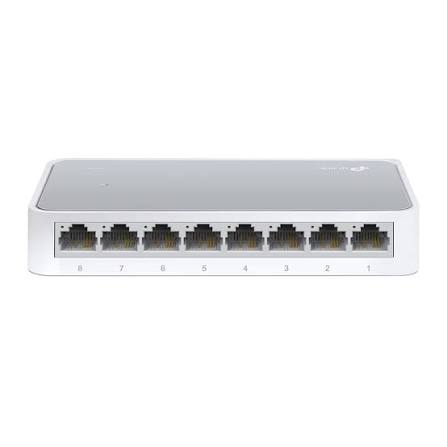
TP-Link
8-Port | Fast Ethernet | Unmanaged
In Stock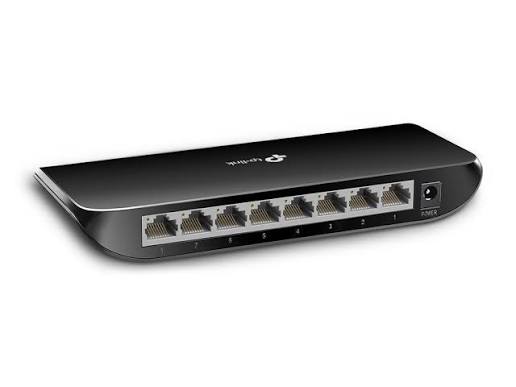
TP-Link
8-Port | Gigabit | Unmanaged
In Stock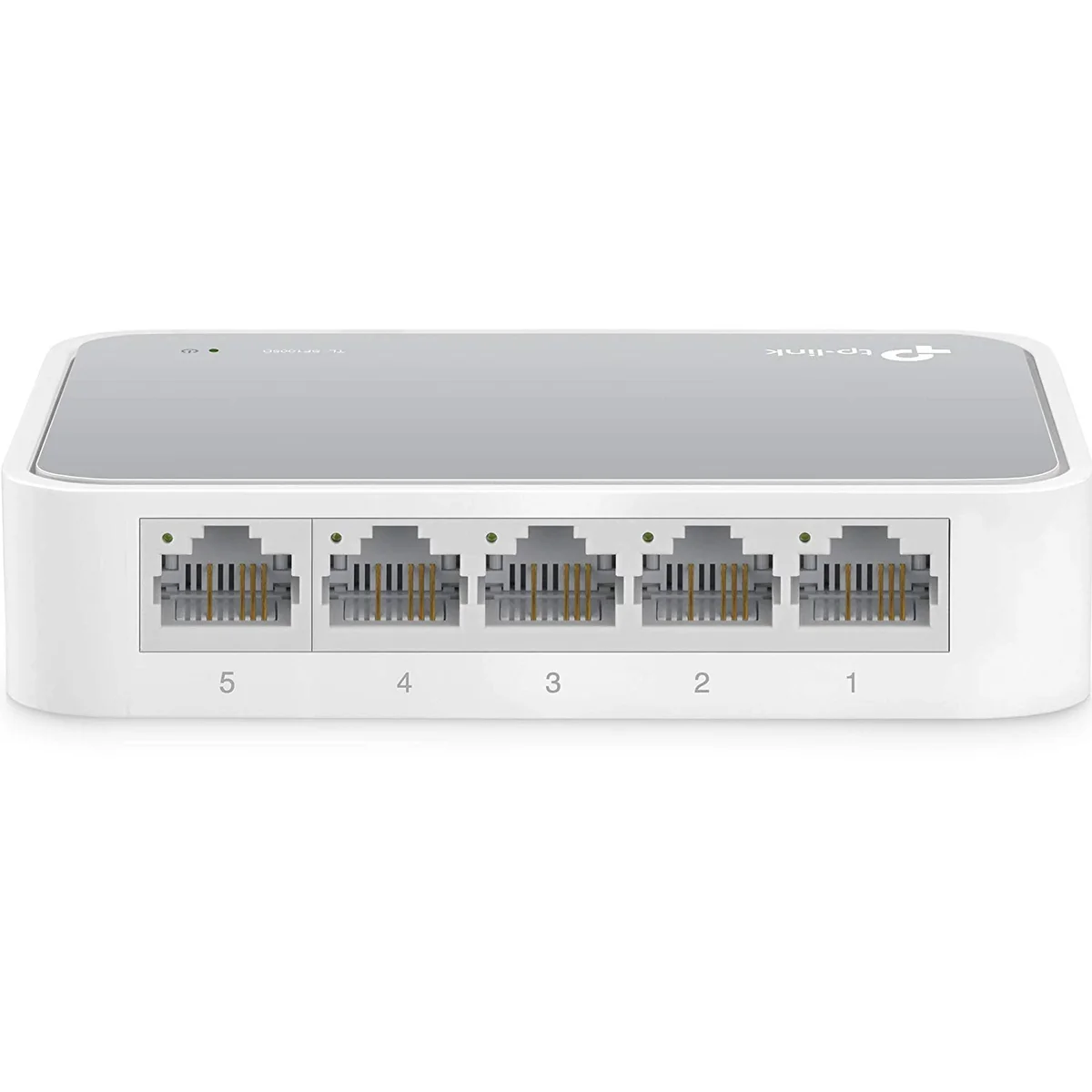
TP-Link
5-Port | Fast Ethernet | Unmanaged
In Stock
TP-Link
5-Port | Gigabit | Unmanaged
In Stock