Who is this switch best for?
- Office LAN expansion
- CCTV and IP camera networks
- WiFi access point connectivity
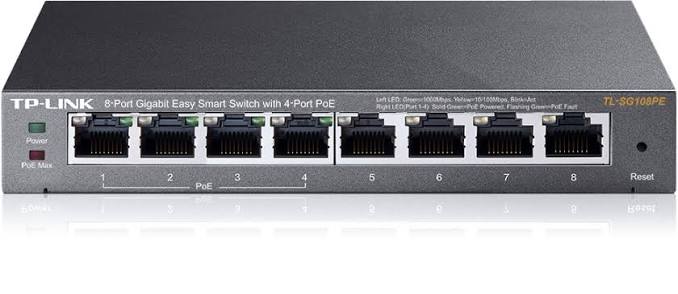
Works with standard Ethernet networking equipment including routers, computers, IP cameras, access points and servers. Confirm port, PoE and mounting requirements before purchase.
Check the product label or manufacturer datasheet for exact input voltage, power adapter and PoE requirements.
The TP-Link TL-SG108PE combines Gigabit Ethernet connectivity, PoE+ power and straightforward network management in a compact desktop switch. It suits small offices, retail premises, home workspaces and surveillance installations that need to connect ordinary Ethernet equipment alongside compatible powered devices.
The current V5 model provides eight Gigabit ports, with PoE+ available on ports 1–4 and a shared 64W power budget. Computers, printers and other separately powered equipment can use the remaining connections. TP-Link
Request the current TP-Link TL-SG108PE price in Kenya from Network Switch Kenya, including confirmation of the hardware version, supplied adapter and installation accessories.
The TL-SG108PE belongs to TP-Link’s Easy Smart switch range. It offers local configuration through a browser or the compatible Easy Smart Configuration Utility, making it useful when basic network controls are needed without a centralized management platform.
Check the hardware revision before purchasing. Earlier documentation describes a 55W IEEE 802.3af version, while the current V5 information specifies the higher-budget PoE+ configuration. Firmware, adapters and feature availability must match the supplied unit. static.tp-link.com
This description focuses on the current V5 configuration. The TL-SG108PE does not provide Wi-Fi, internet gateway services or fiber connections.
Specifications follow TP-Link’s current V5 product information. TP-Link
PoE reduces the need for a separate mains adapter beside each compatible camera, phone or access point. This is useful where equipment is mounted on ceilings or walls away from convenient sockets.
Check each endpoint’s power standard and maximum consumption before installation. Devices requiring passive PoE or higher-power delivery may need another power source.
Gigabit Connections for Everyday EquipmentGigabit connectivity is useful for local file transfers, shared storage access and connections to appropriately specified access points.
Actual performance depends on the complete path. Cables, endpoint adapters, storage performance and upstream equipment can all limit results.
A faster local connection does not increase the speed supplied by an internet subscription.
Local Management Without a ControllerThe local management options suit smaller installations where an administrator wants control over the switch without maintaining a separate controller.
Do not assume that the TL-SG108PE joins an Omada controller simply because it can connect and power an Omada access point. Follow the management methods documented for the exact model and revision.
Network OrganizationVLAN configuration can separate traffic into logical groups when the wider network supports the intended design.
For example, cameras and office computers may be assigned to different segments. The router and other connected equipment must also provide suitable addressing, routing and access policies.
Traffic Prioritization and MonitoringThe switch’s configurable controls can help administrators examine traffic and prioritize selected applications.
These settings do not create extra bandwidth. Use them alongside adequate upstream capacity and test their effect on the applications that matter.
Recovery for Unresponsive Powered DevicesWhere supported and configured, PoE recovery can help restart an unresponsive endpoint.
Investigate recurring failures rather than relying on repeated restarts. Power shortages, poor cabling and faulty devices need their underlying cause corrected.
Connect computers, printers and selected powered endpoints at one central point.
An upstream router provides internet connectivity and firewall services. The switch expands connections within the local network.
Wireless Access Point InstallationsPower compatible access points while carrying their network traffic through the same cable.
The access points still require their own wireless configuration, including network names, passwords and any VLAN settings.
Small Surveillance SystemsConnect compatible cameras to powered ports and a recorder to an ordinary Ethernet port.
Confirm camera demand during night operation and check the recorder’s channel count, incoming bandwidth and storage capacity separately.
IP Telephone DeploymentsConnect compatible desk phones alongside office equipment. The phones must be provisioned for the business’s telephone system.
Home WorkspacesBring a computer, printer and access point together where one cable reaches the room from the main router.
For expansion that does not need PoE or configurable controls, compare the TP-Link TL-SG1008D Gigabit Desktop Switch.
The individual port maximum and shared power allowance are separate limits. Four powered connections do not mean all four can deliver their maximum simultaneously.
Hypothetical powered-device loadCombined demand before cable losses4 cameras consuming 8W each32W2 access points consuming 20W each40W2 cameras at 10W plus 2 phones at 7W34W4 devices consuming 20W each80WThe last example exceeds the stated budget. These are planning examples, not guaranteed supported combinations.
Use maximum device consumption, account for cable losses and leave headroom. Cameras may consume more when infrared illumination or other features activate.
For a higher-demand installation, select equipment around the complete powered-device load rather than port count alone.
One port normally connects upstream, leaving seven for directly connected equipment. Use a non-PoE connection upstream where practical.
Example arrangementPorts usedImportant checkRouter, 4 cameras and recorder6Camera demand and recording capacityRouter, 2 access points and 3 computers6Access-point power requirementsRouter, 2 phones, 3 computers and printer7Phone compatibility and provisioningRouter and 7 endpoints8No spare connection capacityAllow room for future devices. If more than four endpoints need Ethernet-delivered power, choose a switch with additional powered connections.
Read the version from the label and obtain matching documentation and firmware.
Check that the supplied adapter belongs to the unit. Do not interchange adapters between revisions based only on connector fit.
For previously configured equipment, preserve the existing settings before making changes.
2. Prepare the Installation PlanList the endpoints, cable routes and maximum power requirements.
Identify which equipment needs PoE and decide whether separate network segments are necessary. Prepare tested Cat5e or Cat6 cables.
For ordinary copper Ethernet, plan within the standard 100-meter channel limit.
3. Position the SwitchPlace it on a stable surface or use the mounting method supported by the supplied unit.
Keep the enclosure and adapter ventilated. Avoid moisture, excessive heat and cable arrangements that strain the connectors.
4. Connect Power and the Upstream NetworkConnect the correct adapter to a suitable mains supply.
Use a non-PoE port to connect the router’s LAN or an upstream switch where practical. Begin with one upstream path and avoid accidental loops.
If backup operation is required, size a UPS for the switch, powered endpoints and other essential equipment.
5. Locate the Management AddressCheck the DHCP server’s lease list if the switch receives an address automatically.
TP-Link’s installation guidance documents 192.168.0.1, with subnet mask 255.255.255.0, as the fallback where DHCP is unavailable. For isolated setup, a computer could use an unused address such as 192.168.0.10/24.
The compatible Easy Smart Configuration Utility can also discover supported switches on the local network. static.tp-link.com
Avoid introducing a default-addressed unit where another device already uses the same address.
6. Secure Administrative AccessOpen the management interface and follow the login instructions for the installed firmware.
Older documentation specifies admin/admin for initial access. Where those defaults apply, change them immediately. Do not assume that they remain valid on a previously configured unit. static.tp-link.com
Assign a predictable management address and record it securely.
7. Configure VLANs Where RequiredFor a typical segmented network:
Keep a working management path while making changes. Test one segment before moving the complete installation.
8. Connect PoE Devices GraduallyConnect compatible powered equipment to ports 1–4.
Check that each device starts and that the combined demand remains within the available allowance. Use the remaining ports for ordinary Ethernet equipment.
Configure cameras, phones and access points separately.
9. Apply Additional Controls CarefullyUse traffic prioritization, multicast handling or other supported controls only where they serve the design.
If using aggregation, confirm the exact supported method and configure both ends before connecting parallel links. Do not assume that a single transfer gains the combined speed of every connection.
10. Review Recovery SettingsConfigure automatic recovery only after confirming stable normal operation.
Test its effect on the connected endpoint and avoid settings that cause unnecessary restarts during normal startup or temporary network interruptions.
11. Review Firmware and Save SettingsUse firmware intended for the exact hardware revision and region.
Back up the existing configuration, maintain stable power during updates and use the documented procedure to retain changes after a restart.
12. Test and DocumentTest all devices simultaneously under representative load.
Check recording, calls, wireless access and intended network separation. Label cables and retain a port map, management address and configuration backup.
For a different managed PoE platform, review the UniFi Pro 8 PoE or UniFi Enterprise 8 PoE at Ubiquiti UniFi Kenya. Compare power capacity, interface speeds and management requirements.
For simpler wired expansion, assess the TP-Link 8-Port Gigabit Switch at Orbitlink Solutions or the D-Link DGS-108 at Tawa.
For surveillance equipment with different power requirements, compare the Dahua Fast Ethernet PoE Switch at Reisen SEO. Confirm its exact model, powered-port count and budget.
For fiber-focused networking, review the MikroTik CRS309-1G-8S+IN. For a different copper-and-uplink arrangement, assess the MikroTik CRS310-8G+2S+IN. These serve different needs from a compact PoE access switch.
Confirm that the quotation includes the correct adapter, mains cable and documentation for the supplied revision.
Specify Ethernet cables, UPS equipment, mounting accessories and installation services separately unless expressly included. Confirm product condition and warranty coverage before ordering.
No. Ports 1–4 provide PoE on the referenced current version; ports 5–8 provide ordinary Ethernet connectivity.
Can it power four access points?Only if their requirements are compatible and their combined maximum demand fits within the available power allowance.
Does it require an Omada controller?No. Its documented management options are the local web interface and Easy Smart Configuration Utility.
Can it connect equipment from other brands?Yes, where Ethernet and PoE requirements are compatible. Application settings still need to be configured separately.
Does it provide Wi-Fi?No. Connect a separate wireless access point.
Why does the hardware version matter?Earlier units have different power capabilities, and firmware or accessories must match the supplied revision.
Contact Network Switch Kenya for a quotation on the TP-Link TL-SG108PE 8-Port Gigabit PoE+ Easy Smart Switch. Share your powered-device count, maximum demand and management requirements to confirm the right version and installation plan.
TP-Link TL-SG108PE 8-Port Gigabit PoE+ Smart Switch Price in Kenya is currently listed as available. Stock can change, so confirm availability before placing a large order.
The current listed price is KSh 9,800.00. Prices are generated from the product catalogue and may change when inventory is updated.
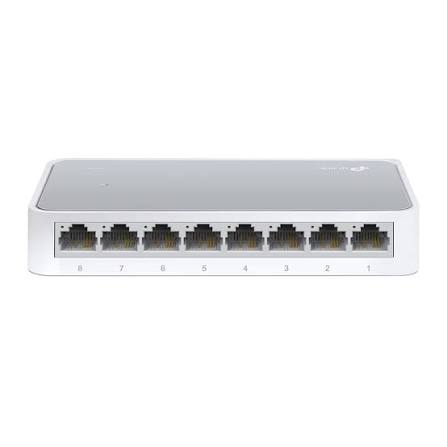
TP-Link
8-Port | Fast Ethernet | Unmanaged
In Stock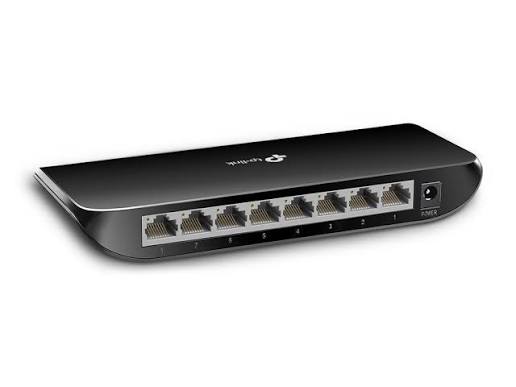
TP-Link
8-Port | Gigabit | Unmanaged
In Stock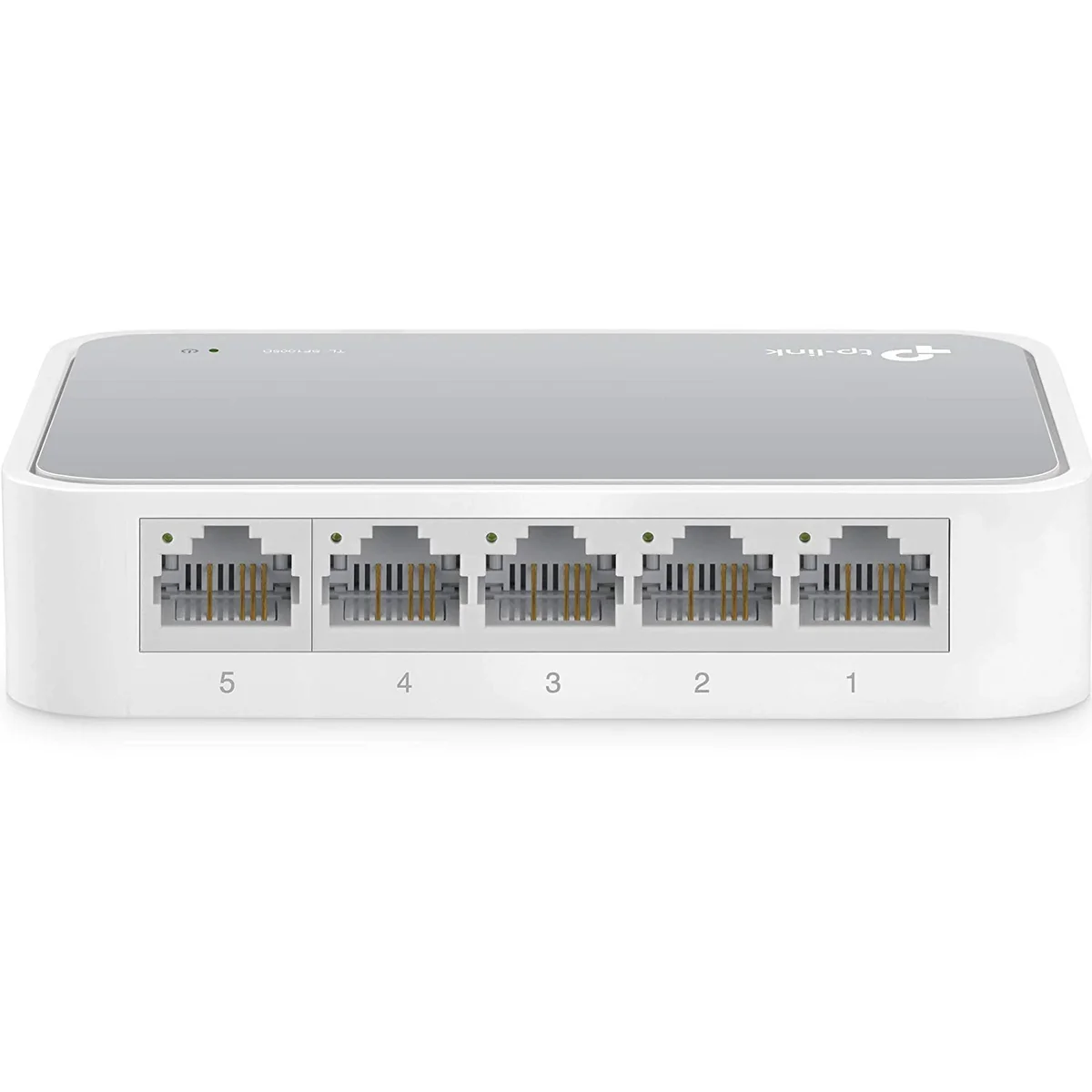
TP-Link
5-Port | Fast Ethernet | Unmanaged
In Stock
TP-Link
5-Port | Gigabit | Unmanaged
In Stock