Who is this switch best for?
- Office LAN expansion
- CCTV and IP camera networks
- WiFi access point connectivity
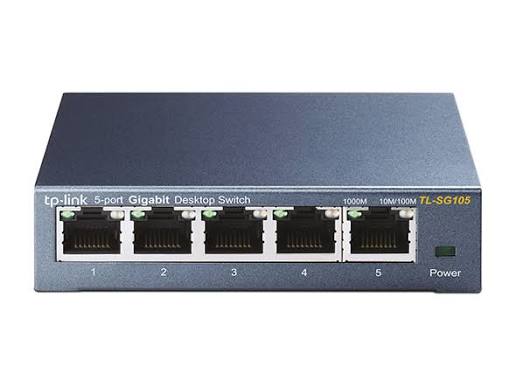
Works with standard Ethernet networking equipment including routers, computers, IP cameras, access points and servers. Confirm port, PoE and mounting requirements before purchase.
Check the product label or manufacturer datasheet for exact input voltage, power adapter and PoE requirements.
The TP-Link TL-SG105 5-Port Gigabit Switch expands a wired network without complicated configuration. It is suitable for homes, small offices, shops, and workspaces where the router does not have enough available Ethernet connections.
Connect computers, network printers, smart TVs, gaming consoles, and storage devices through a single compact switch. Its metal enclosure and fanless construction make it convenient for placement on a desk or shelf, while wall mounting offers another way to organize your installation.
The TL-SG105 is an unmanaged, plug-and-play switch. Basic operation does not require an administrator account, management software, or a controller. TP-Link United Kingdom
Request the current TP-Link TL-SG105 price in Kenya from Network Switch Kenya. Confirm the hardware revision, included accessories, and warranty terms before ordering.
The following specifications use TP-Link’s V6 documentation. Power requirements and other details can differ between revisions.
SpecificationDetailsModelTP-Link TL-SG105Switch typeUnmanaged Gigabit desktop switchEthernet ports5 × 10/100/1000Mbps RJ45Port functionsAuto-negotiation and Auto MDI/MDIXSwitching capacity10GbpsPacket forwarding rate7.4MppsMAC address table2K entriesPacket buffer1MbJumbo frame support, V616KBForwarding methodStore-and-forwardEnclosureMetalCoolingFanlessInstallationDesktop or wall mountingDimensions, V6100 × 98 × 25mmExternal adapter output, V65V DC, 0.6AMaximum power consumption, V62.3W at 220V/50HzOperating temperature0–40°COperating humidity10–90%, non-condensingTP-Link also specifies automatic 802.1p/DSCP QoS, IGMP snooping, and flow control. These functions do not provide a configurable management dashboard. TP-Link South Africa
The TL-SG105 is useful when your router’s LAN ports are already occupied. Instead of replacing the router, connect the switch to an existing LAN port and attach additional equipment nearby.
One port normally carries the connection back to the router, leaving four ports for local devices. This arrangement suits a small work area containing a computer, printer, storage device, and another Ethernet-enabled endpoint.
For another compact option, compare the TP-Link TL-SG1005D or TP-Link LS1005G.
Support Faster Local File TransfersA Gigabit connection gives compatible devices more local transfer capacity than a 100Mbps connection. This can be useful when accessing shared folders, copying large documents, or backing up files to network storage.
Actual transfer speeds depend on the complete connection, including cabling, network adapters, storage performance, and the receiving device.
The switch does not increase your internet subscription speed. Internet performance still depends on your provider, router, and available bandwidth.
Keep Installation StraightforwardThe TL-SG105 suits users who need ordinary Ethernet connectivity without configuring VLANs or port policies.
Connect power, attach the router, and connect your devices. The router or another designated network server continues to provide services such as DHCP and internet access.
There is no switch web interface to log into for routine setup.
Organize Equipment Around One Network CableIf an office or room already has one Ethernet connection, a switch can distribute that connection to several nearby devices. This can reduce the need to run multiple cables back to the main router.
The upstream connection is shared, so several busy devices may compete for its available capacity.
Connect a work computer, network printer, storage device, and another fixed endpoint through the existing router connection.
This arrangement is helpful when the router is in another room and the office already has a single Ethernet cable installed.
Entertainment CentersUse the switch to connect a smart TV, gaming console, streaming device, or media player.
Wired connections can reduce dependence on Wi-Fi where walls, distance, or interference affect wireless performance. Online streaming and gaming still depend on the internet connection and the remote service.
Small Businesses and Retail CountersA small workgroup can use the switch to connect computers, printers, and checkout equipment.
If the business requires separate staff, guest, surveillance, or payment networks, select equipment that supports the required configuration and security policies.
Access Points and Surveillance EquipmentThe TL-SG105 can carry Ethernet traffic for compatible access points and cameras, but it does not supply PoE power. Connected equipment needs its own power source.
If you want power and data through the same cable, review the TP-Link TL-SG1005P or the TL-SG1005P PoE listing at Reisen SEO. Check the exact revision, supported power standards, and power budget.
Allow for the uplink. Five ports do not normally mean five local devices plus a router. The router connection occupies one of those ports.
Plan for growth. If four local device connections are already insufficient, consider the TP-Link TL-SG1008D 8-Port Gigabit Desktop Switch.
Choose the correct model. The TL-SG105, TL-SG105E, and TL-SG1005P are different products. Do not assume that management or PoE features apply across them.
Keep the router. The TL-SG105 expands Ethernet connectivity; it does not replace your firewall, internet gateway, or wireless access point.
Check the power label. Use the adapter specified for your supplied hardware revision. Older TL-SG105 documentation lists a different adapter voltage from V6, so adapters should not be exchanged based on connector fit alone. static.tp-link.com
You will need:
Inspect the cables and connectors before installation. For permanent cabling, ensure all pairs are correctly terminated.
2. Choose a Suitable LocationPlace the switch indoors on a stable surface near the devices it will connect.
Keep it away from water, excessive heat, and locations where cables could be crushed or pulled. Leave enough space around it for airflow and access to the connectors.
If wall mounting, follow the installation guide and use suitable fixings for the surface.
3. Connect PowerConnect the correct adapter to the switch, then plug it into the electrical outlet.
Check the power indicator. If it does not illuminate, verify the outlet and adapter connections before continuing.
A suitable UPS can support the switch during a power interruption, but the router and other essential equipment also need backup power to maintain service.
4. Connect the RouterRun an Ethernet cable from a LAN port on the router to an available switch port.
Any port can serve as the ordinary upstream connection. There is no dedicated WAN port on the TL-SG105.
Avoid using the router’s WAN socket for this LAN expansion connection.
5. Connect Your DevicesAttach each device using its own Ethernet cable.
PortExample connection1Router LAN connection2Desktop computer3Network printer4Smart TV5Network storageThis is an example arrangement, not a set of fixed port roles.
Do not connect one switch port directly to another port on the same switch. Avoid duplicate connections to upstream equipment unless a qualified network design explicitly requires them.
6. Check Device AddressingOn a typical home or small-office network, configure computers to obtain their IP address and DNS settings automatically.
The router normally supplies these settings. The switch does not act as a DHCP server.
If your organization uses static addresses, apply the settings provided by its administrator and ensure each device has a unique address.
7. Test the NetworkCheck the link indicators, then test the services you need:
If a Gigabit-capable computer connects at only 100Mbps, try a known-good cable and check its network adapter settings. A damaged or incorrectly terminated cable can prevent a Gigabit connection.
8. Label and Secure the CablingLabel the router connection and endpoint cables. Leave enough slack to move equipment without straining the sockets.
Keep a simple record of which device connects to each port. This makes later troubleshooting easier.
Compare the TL-SG105 with the TP-Link TL-SG1005D at Tawa and Orbitlink’s five-port Gigabit switch listing.
Check the exact model, enclosure, supplied adapter, and warranty when comparing products with similar names.
Fast Ethernet AlternativesFor legacy devices with modest bandwidth requirements, review the TP-Link TL-SF1005D at Orbitlink, Orbitlink’s five-port Fast Ethernet switch, and the TL-SF1005D at Tawa.
Consider the effect of their 100Mbps connection limits before choosing them for shared storage or large file transfers.
UniFi and Specialized Switching OptionsFor an installation using UniFi management, investigate the UniFi Flex Mini and UniFi Flex. Their power arrangements and capabilities differ, so assess each model separately.
The MikroTik RB260GSP provides another option to investigate where managed switching and compatible passive PoE equipment form part of the design. Verify its voltage and device compatibility carefully.
Routers for the Internet ConnectionIf the internet gateway also needs upgrading, compare the MikroTik hEX RB750Gr3, hEX E50UG, and hEX S RB760iGS.
The MikroTik RB951Ui-2HnD is another router option to assess against your wireless and interface requirements. These routers perform a different role from the TL-SG105.
TP-Link lists the switch, power adapter, and installation guide in the V6 package. Confirm the contents of the supplied regional version before purchase. TP-Link South Africa
Plan separately for Ethernet patch cables, permanent cabling work, and any backup power equipment required.
Does the TL-SG105 provide Wi-Fi?
No. Connect a separate wireless access point.
Can it work with a router from another brand?
Yes, through a compatible Ethernet LAN connection.
How many devices can I connect alongside the router?
Four local devices when one port is used for the router connection.
Does it require a subscription?
No subscription is needed for ordinary switching. Internet service is purchased separately.
Can it power cameras or access points?
No. Those devices need a separate compatible power source or a suitable PoE switch.
Can I configure VLANs on it?
No. Choose a managed or Easy Smart model if configurable VLAN settings are required.
What is the price in Kenya?
Request a current quotation from Network Switch Kenya and confirm the hardware revision and warranty.
Choose the TP-Link TL-SG105 when you need simple wired network expansion for a small group of devices.
Visit Network Switch Kenya for a quotation, or compare it with the TP-Link TL-SG1005D 5-Port Gigabit Desktop Switch.
TP-Link TL-SG105 5-Port Gigabit Switch Price in Kenya is currently listed as available. Stock can change, so confirm availability before placing a large order.
The current listed price is KSh 1,900.00. Prices are generated from the product catalogue and may change when inventory is updated.
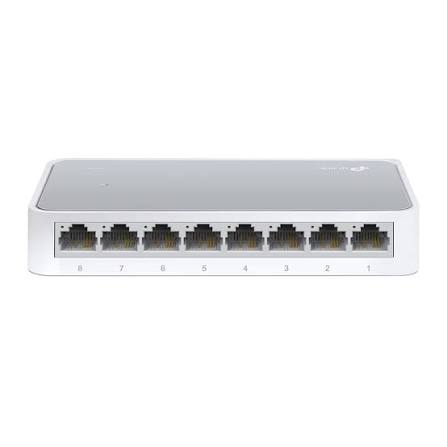
TP-Link
8-Port | Fast Ethernet | Unmanaged
In Stock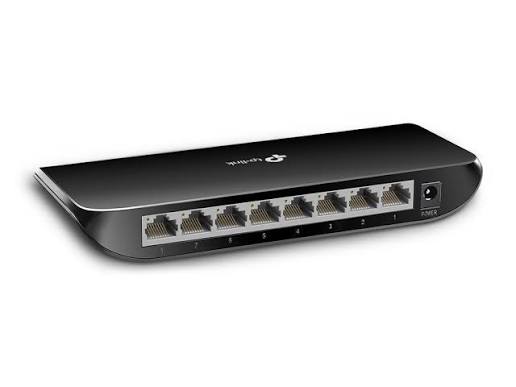
TP-Link
8-Port | Gigabit | Unmanaged
In Stock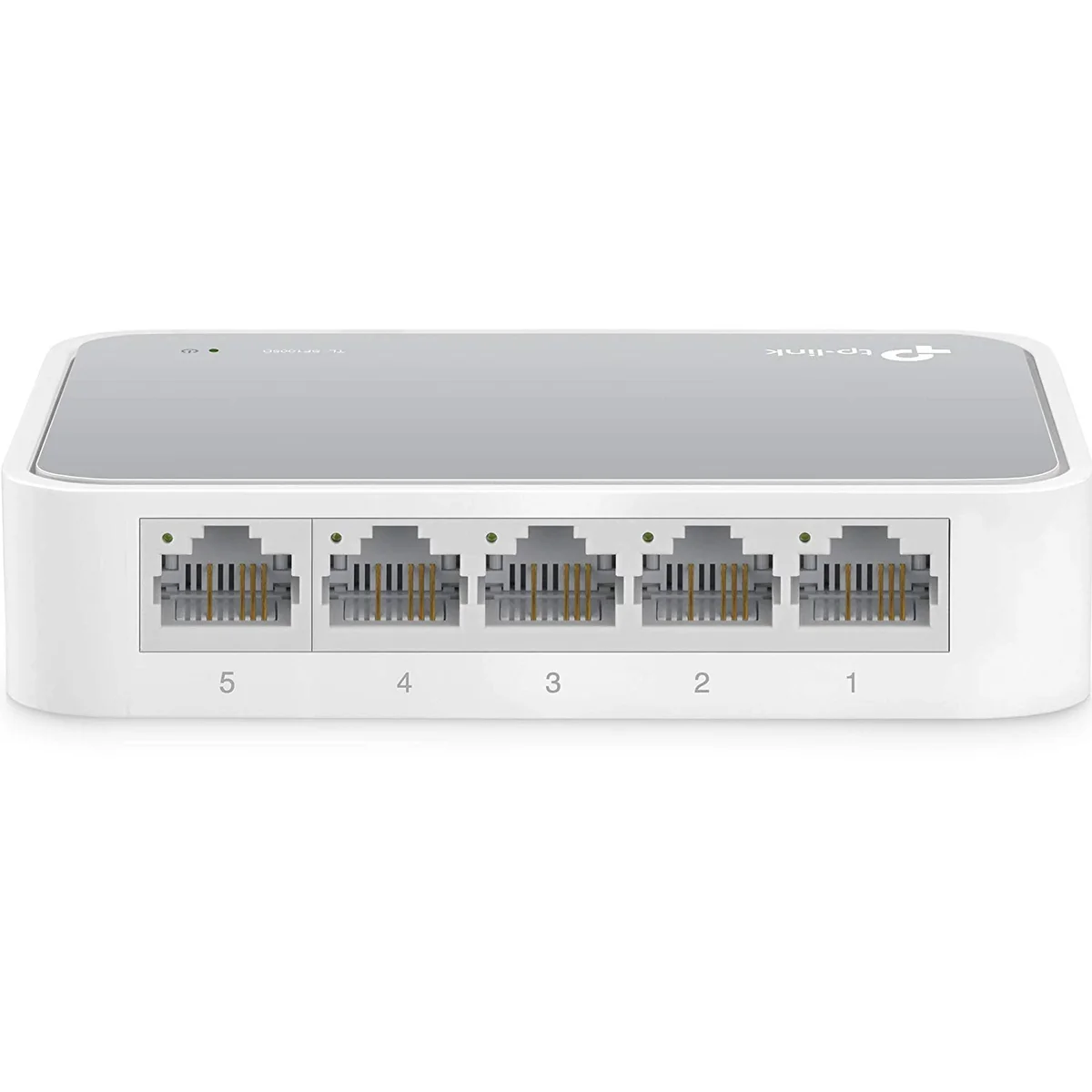
TP-Link
5-Port | Fast Ethernet | Unmanaged
In Stock
TP-Link
5-Port | Gigabit | Unmanaged
In Stock