Who is this switch best for?
- Office LAN expansion
- CCTV and IP camera networks
- WiFi access point connectivity
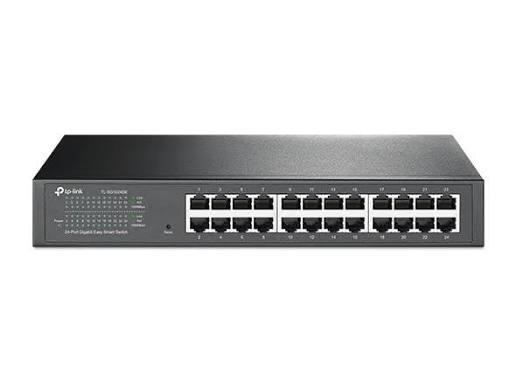
Works with standard Ethernet networking equipment including routers, computers, IP cameras, access points and servers. Confirm port, PoE and mounting requirements before purchase.
Check the product label or manufacturer datasheet for exact input voltage, power adapter and PoE requirements.
The TP-Link TL-SG1024DE 24-Port Gigabit Easy Smart Switch expands your wired network while giving you practical control over traffic, connected devices, and network segmentation. It is a suitable choice for offices, schools, shops, computer labs, and growing businesses that need more control than an unmanaged switch provides.
Its 24 Gigabit Ethernet ports accommodate computers, network printers, servers, storage devices, and access points. Basic connectivity works with minimal setup, while its management interface lets an administrator configure features such as VLANs and traffic prioritization.
Explore networking equipment at Network Switch Kenya and request a quotation for the TL-SG1024DE. Confirm the hardware revision, package contents, and warranty terms when ordering.
The specifications below follow TP-Link’s V7 documentation. Physical dimensions and some features can differ between hardware revisions.
SpecificationDetailsModelTP-Link TL-SG1024DEProduct classGigabit Easy Smart switchEthernet ports24 × 10/100/1000Mbps RJ45Port functionsAuto-negotiation and Auto MDI/MDIXSwitching capacity48GbpsPacket forwarding rate35.7 million packets per secondMAC address table8K entriesPacket buffer4.1MbitJumbo framesUp to 10KBVLAN supportPort-based, tag-based, and MTU VLAN; up to 32 simultaneous VLANsTraffic controlsQoS, rate limiting, and storm controlAdditional functionsIGMP snooping, static link aggregation, port mirroring, cable diagnostics, and loop preventionManagementWeb interface and compatible configuration utilityCoolingFanlessPower input100–240V AC, 50/60HzDimensions, V7294 × 140 × 44mmInstallationRackmountOperating temperature0–40°CThese are manufacturer specifications, rather than a guarantee of application throughput in every installation. TP-Link Australia
Connect an entire workgroup through one switch. A centralized wired connection makes it easier to organize workstation, printer, and server cabling. You can label ports by desk, room, or department, simplifying future maintenance.
Introduce network separation. A business may want office computers, guest equipment, and surveillance devices on different logical networks. Proper segmentation makes those connections easier to manage and helps support a wider security plan.
Manage congestion more deliberately. When backups, downloads, calls, and everyday browsing share a connection, administrators benefit from being able to decide which traffic deserves priority.
Investigate connection problems. Monitoring and diagnostic tools can help narrow down whether a fault involves a cable, a port, or traffic behavior before replacing equipment.
Keep administration manageable. The Easy Smart category suits organizations that want useful switching controls without building their entire network around an enterprise management platform.
Connect desktop computers, printers, a file server, and the office router to create a centralized wired LAN. This arrangement is useful for accounting departments, administrative teams, reception desks, and shared workspaces.
Reserve ports for expansion. For example, connecting one router and 20 workstations leaves three ports available for printers, access points, or future equipment.
Schools and Computer LabsA computer lab can use the switch to connect student PCs to shared resources. Administrators should plan student, staff, and management access before implementing any network separation.
Retail and HospitalityThe switch can connect checkout computers, back-office equipment, printers, and separately powered access points. Payment systems should follow the security requirements of their service providers; installing a smart switch alone does not establish compliance.
Surveillance NetworksIt can carry network traffic between cameras, recording equipment, and viewing stations. The TL-SG1024DE does not supply PoE, so cameras require separate power or compatible injectors.
For a smaller network that needs fewer connections, consider the TP-Link TL-SG1016D 16-Port Gigabit Switch. Choose according to both port count and management requirements.
The TL-SG1024DE belongs to TP-Link’s Easy Smart range. Do not assume it offers every feature of a fully managed enterprise switch or supports Omada Controller adoption.
It also has no SFP or SFP+ slots. If your installation needs a direct fiber connection or a faster backbone, choose a model with the appropriate interfaces.
Each copper connection operates at up to Gigabit speed. The switching-capacity figure does not mean a single computer receives a connection of that speed, and installing the switch does not increase your internet subscription speed.
For VLAN deployments, the router or firewall must also support the intended design. It normally handles routing, DHCP services, and security policies between separate networks.
Prepare a simple port schedule before installation. An example is:
PortsIntended connection1Router or firewall2–12Office workstations13–16Printers and shared equipment17–20Separately powered access points or other devices21–23Server, storage, or expansion24Administrator’s temporary setup connectionThis is an example allocation; none of these ports is a dedicated WAN or management port.
Decide whether you need a flat network or separate VLANs. Record the router’s LAN address, DHCP range, and any existing VLAN IDs.
2. Install the SwitchPlace it in a dry, ventilated indoor location. For rack installation, attach the correct mounting brackets and secure the unit according to its installation guide.
Keep ventilation openings clear and route cables so they do not pull on the Ethernet sockets. Connect the supplied power cord to an appropriate grounded outlet. A suitable UPS can help maintain service during short power interruptions.
3. Connect the Router and Test ComputerConnect a LAN port on your router to an available switch port using a reliable Cat5e or Cat6 patch cable. Connect your setup computer to another port.
Check the link indicators. Before introducing VLANs or other changes, confirm that the computer can obtain its normal network settings and reach the required resources.
Avoid connecting multiple cables between the switch and another switch unless you have deliberately configured an appropriate link arrangement.
4. Find the Management AddressCheck the router’s DHCP client list or use TP-Link’s compatible discovery utility to locate the switch.
Some hardware and firmware versions use DHCP, while older configurations may use 192.168.0.1. Follow the guide matching the version printed on the device label.
If the applicable guide specifies 192.168.0.1 and no DHCP address is available:
The manufacturer’s older model guide documents this default-address approach; check your revision before using it. static.tp-link.com
5. Secure Administrative AccessFollow the first-login instructions for your revision. Create or change the administrator password immediately.
Set a descriptive device name, such as Main-Office-Switch. Assign a suitable management address or create a DHCP reservation so the address remains predictable.
Keep administrative access on a trusted network and record the address securely.
6. Configure VLANs If RequiredFor example, an office might plan:
VLANPurpose10Staff devices20Guest equipment30Surveillance devicesConfigure the router or firewall to support these networks first.
On the switch:
An incorrect PVID or uplink membership can disconnect devices. Keep a recovery connection available while making changes.
7. Apply Traffic Controls CarefullyStart with a clear objective, such as limiting a guest connection or prioritizing approved voice traffic.
Change one setting at a time and compare performance before and after. Priority rules cannot create additional internet bandwidth, so persistent congestion may also require a faster internet service or a revised network design.
If using static link aggregation, configure both connected devices consistently before adding the extra cables. Do not assume static aggregation is interchangeable with LACP.
8. Save, Back Up, and TestUse the configuration-saving procedure specified by the installed firmware. Export a backup when available.
During a maintenance window, verify that settings remain after a restart. Test internet access, printing, server connections, VLAN separation, and any traffic policies.
Install firmware only when it matches the exact model, hardware version, and regional requirements. Back up first and maintain stable power throughout the update.
For a UniFi-based installation, compare the UniFi Standard 24 and UniFi Pro 24.
If powering endpoints is a requirement, review the UniFi Standard 24 PoE and UniFi Pro 24 PoE. Related listings include Orbitlink’s USW-24-PoE and USW-Pro-24-PoE. Check each model’s powered-port count, power budget, uplinks, and management requirements.
Gigabit AlternativesFor straightforward connectivity, compare the TP-Link TL-SG1024D at Orbitlink, TP-Link TL-SG1024 at Reisen SEO, and TL-SG1024D at Reisen SEO.
Other options include the D-Link DGS-1024D at Tawa, Tawa’s 24-port Gigabit switch listing, and the DGS-1024D at Reisen SEO.
For a different managed-switch platform, investigate the MikroTik CRS326-24G-2S+RM. Compare its interfaces and administration approach with your installation requirements.
Fast Ethernet AlternativesFor legacy networks, review the TP-Link TL-SF1024D, TL-SF1024 at Tawa, and TL-SF1024 at Reisen SEO.
Additional options include Tawa’s D-Link DES-1024D unmanaged listing, its DES-1024D desktop listing, and the DES-1024D at Reisen SEO. Consider the effect of a 100Mbps connection limit before choosing these for large file transfers.
Confirm the supplied package before ordering, particularly when comparing different hardware revisions.
Plan separately for Ethernet patch cables, structured cabling, a patch panel, cable labels, and a suitable cabinet where required. Fiber modules are not applicable to this model because it has no optical expansion slots.
Does it replace my router?
No. Keep a suitable router or firewall for internet access, address assignment, and network security policies.
Can I use it without configuring advanced features?
Yes, for basic connectivity. Secure its management access even if you do not initially need advanced settings.
Does it provide Wi-Fi?
No. Connect a separate wireless access point.
Will it improve my internet speed?
It can improve the wired connection between compatible devices, but your internet service and router still determine internet performance.
What is the price in Kenya?
Request the current price from Network Switch Kenya. Specify the required quantity and ask for confirmation of the hardware revision, warranty, and installation accessories.
Choose the TP-Link TL-SG1024DE when you need organized wired connectivity with practical local management. Visit Network Switch Kenya to request a quotation or compare it with the TP-Link 24-Port Gigabit Rackmount Switch.
TP-Link TL-SG1024DE 24-Port Gigabit Smart Switch Price in Kenya is currently listed as available. Stock can change, so confirm availability before placing a large order.
The current listed price is KSh 19,000.00. Prices are generated from the product catalogue and may change when inventory is updated.
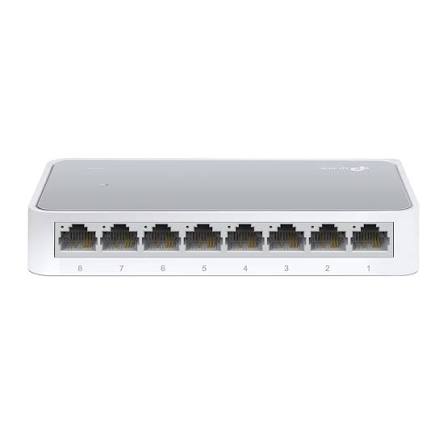
TP-Link
8-Port | Fast Ethernet | Unmanaged
In Stock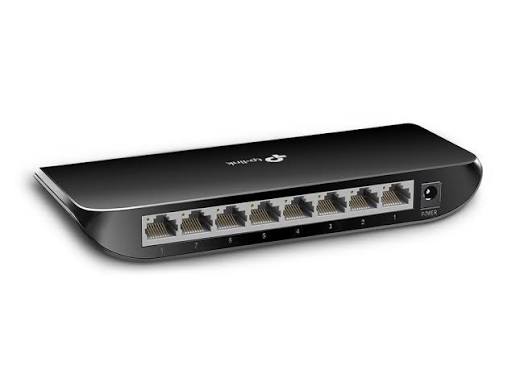
TP-Link
8-Port | Gigabit | Unmanaged
In Stock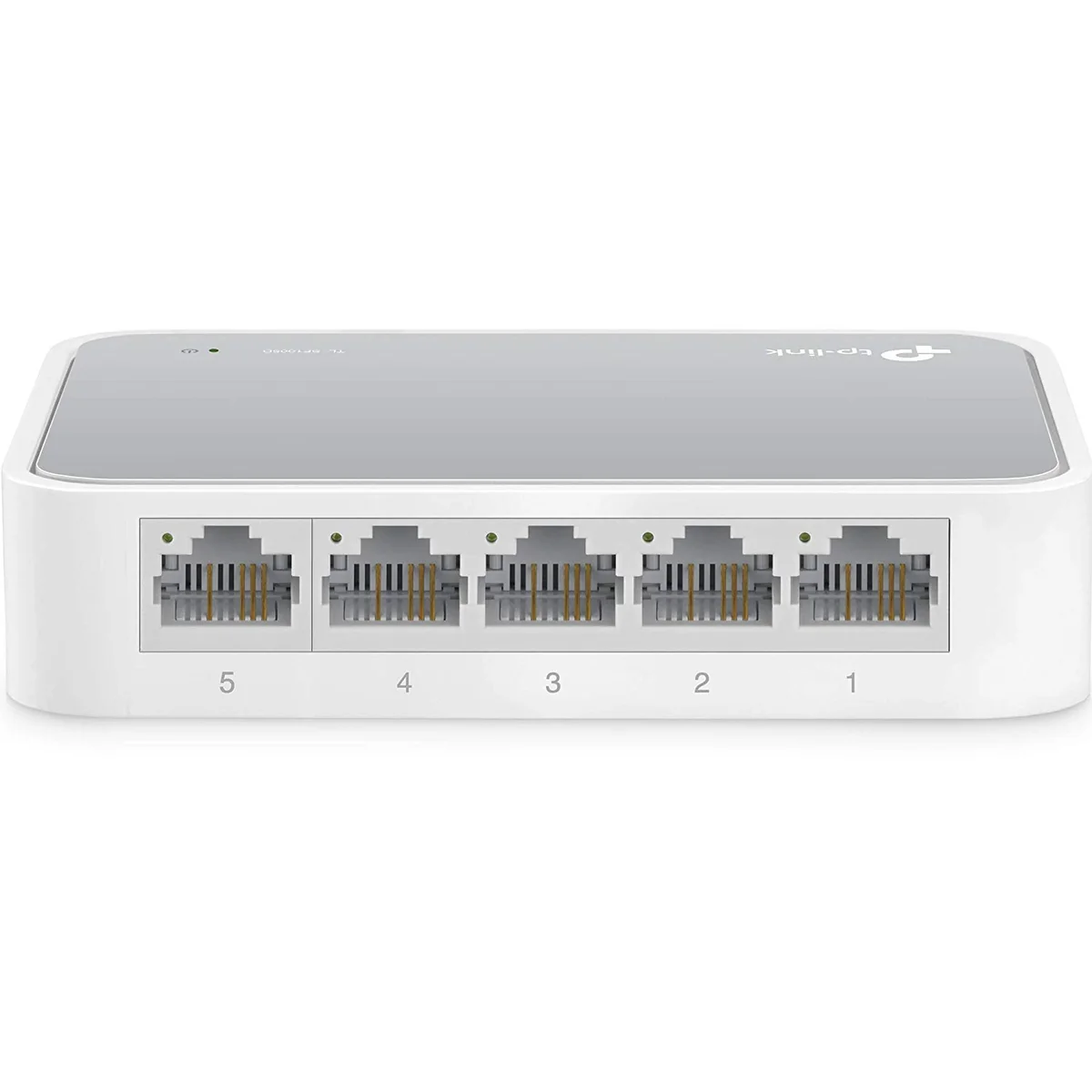
TP-Link
5-Port | Fast Ethernet | Unmanaged
In Stock
TP-Link
5-Port | Gigabit | Unmanaged
In Stock